
Your first job
This page walks through the minimal path from “installed” to “merged PR on a real repo.” The dashboard is the primary control surface; the CLI appears only as an optional shortcut at the end.
1. Open the dashboard and finish setup
If you installed the desktop app: launch Coro from Applications or the Start menu. The bundled dashboard opens automatically (typically http://localhost:3000/dashboard/).
If you installed the CLI: run coro start once, then open http://localhost:3000/dashboard/ if a browser tab did not open.
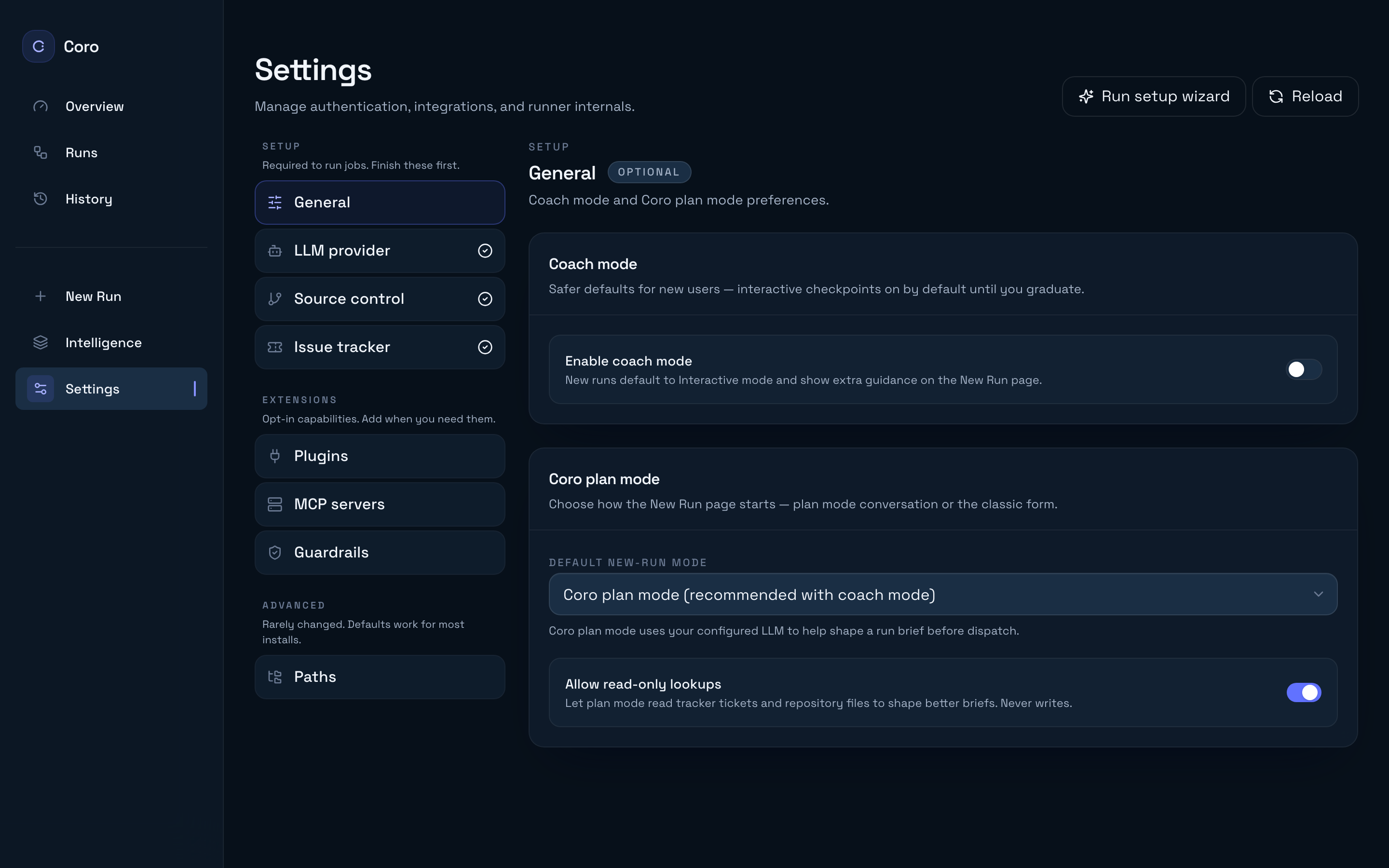
On first launch, complete the setup wizard—it guides you through a model and a code host. Tracker and MCP servers are added later from Settings. Reopen the wizard anytime from Settings → Run setup wizard, or configure each section directly in Settings. Local mode works on a git checkout on this machine and leaves a branch for you to merge — it does not open a hosted pull request.
Until at least one SCM plugin is healthy and you have a working LLM path (Claude login and/or API key), new runs block at hand-off points visible in the UI.
See Configure providers for detail on each Settings section.
2. Start a run from the dashboard (recommended)
- Open New run in the sidebar (home:
/dashboard/). The setup wizard runs here on first launch. - Describe the work in conversation. Coro investigates it with you — reading the repo, asking what it needs — and produces an editable Run card once the work is clear.
Coro plan mode
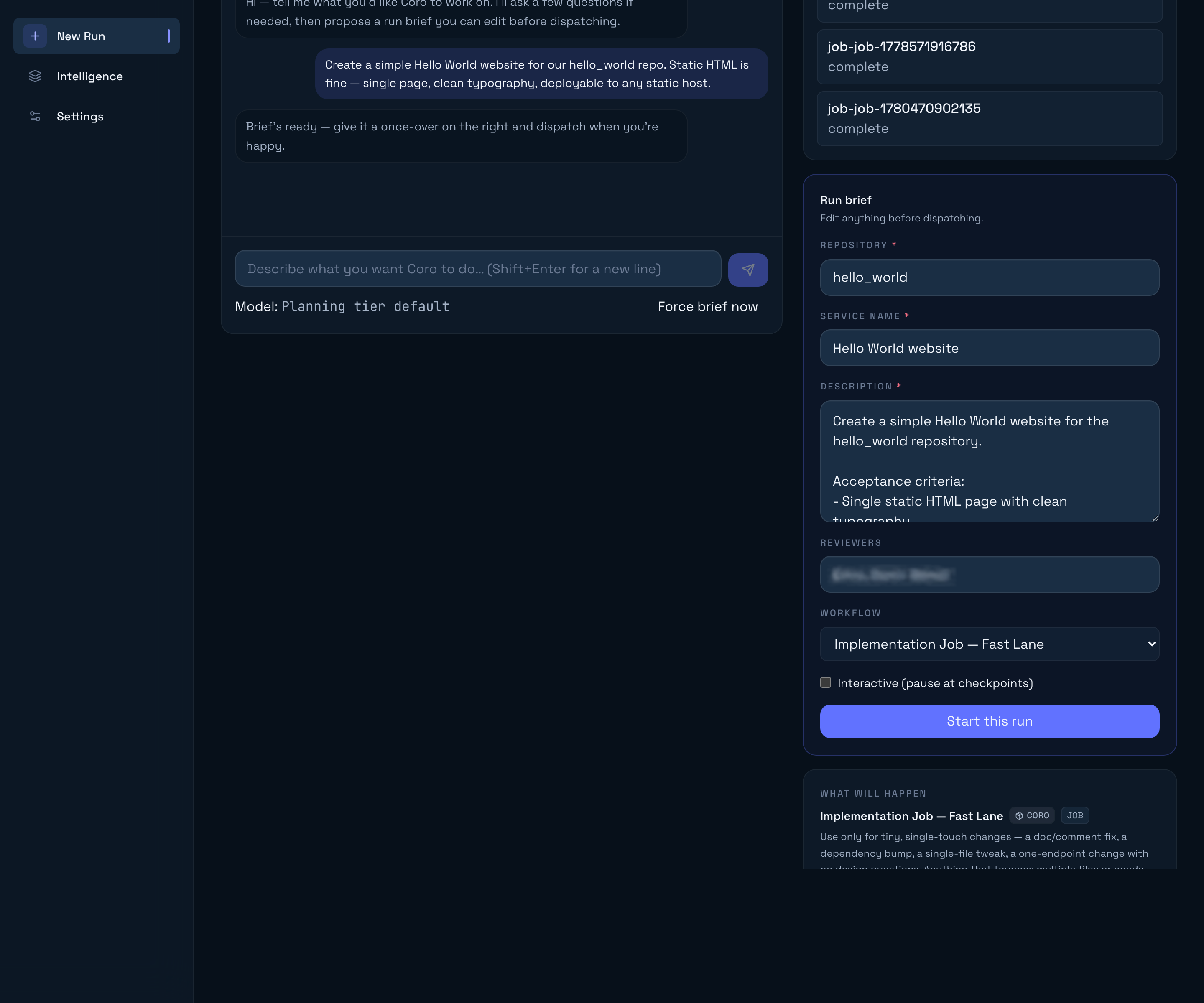
New run is a transcript with Recents on the left (a Recents dialog on small screens): chat and activity in the main column, composer pinned at the bottom:
- Describe the task in the composer (Enter sends, Shift+Enter for a new line).
- While Coro looks things up, similar reads stack into one activity chip (for example Read 17 files) instead of a vertical wall of tool lines.
- Answer Coro’s questions and read what it found. The line above the composer tells you whether anything is still unresolved. Take your time here — this conversation is the biggest lever on whether the run succeeds. When Coro has a write-up, it lands as a Findings card (markdown), not a wall of chat text.
- When Coro reports Ready to start, Generate run pulses in the composer and also appears under the Findings write-up. Click it. The raw
<run>payload is hidden; a Run card appears in the transcript, and the composer control becomes a static Run generated chip. Expand the card to edit repository, service name, description, reviewers, workflow, and interactive checkpoints. - Click Start run on the card.
If you want a change after the card appears, keep chatting — a revised run is a second card; the previous one is marked superseded. Pick a planning model from the Model: label below the composer.
Coro may also conclude that no run is needed — the behaviour already works, or the premise was wrong. That is a good outcome; nothing is started.
See Coro plan mode for readiness, model picker, read-only lookups, and the run schema.
3. Optional: start from the CLI
For automation or terminal-only environments:
coro job --repo my-service --description "Add rate limiting to /api/users"Replace my-service with a repository slug your SCM plugin can clone (the same identifier Coro puts on the Run card). The description is all the agents get, so write it as if the reader has no other context — the CLI has no investigation step to fill the gaps.
Use coro jobs, coro status --job <id>, and coro logs --job <id> for terminal observability alongside the dashboard. See the CLI reference for every subcommand.
4. What happens next
Coro doesn’t hide the pipeline—each phase is explicit, with logs and work items in the run detail view.
For a typical STANDARD implementation job, the high-level flow is:
- Spec writing — The Spec Writer turns the ticket (or your plan-mode / CLI description) into a structured
feature-spec.mdand posts it as aspec-mddashboard artefact. Tracker jobs also read the ticket viatracker_get_issue; other jobs useparams.descriptiondirectly. - Planning — The Planner reads the repo, chooses language conventions, sizes the work (and may switch between FAST, STANDARD, or DEEP lanes), and records work items.
- Coding — The Coder implements the change, runs tests locally, and opens a pull request. A code-reviewer subagent runs inside this phase for convention and plan alignment—this is not the same as the human-facing review step.
- Review — The PR Reviewer phase coordinates human review on your SCM platform, merges when policy allows, and can send the run back to coding for fixes.
- Evaluation — The Evaluator verifies the merged result against acceptance criteria, captures memory and self-improvement proposals when appropriate, and closes the loop.
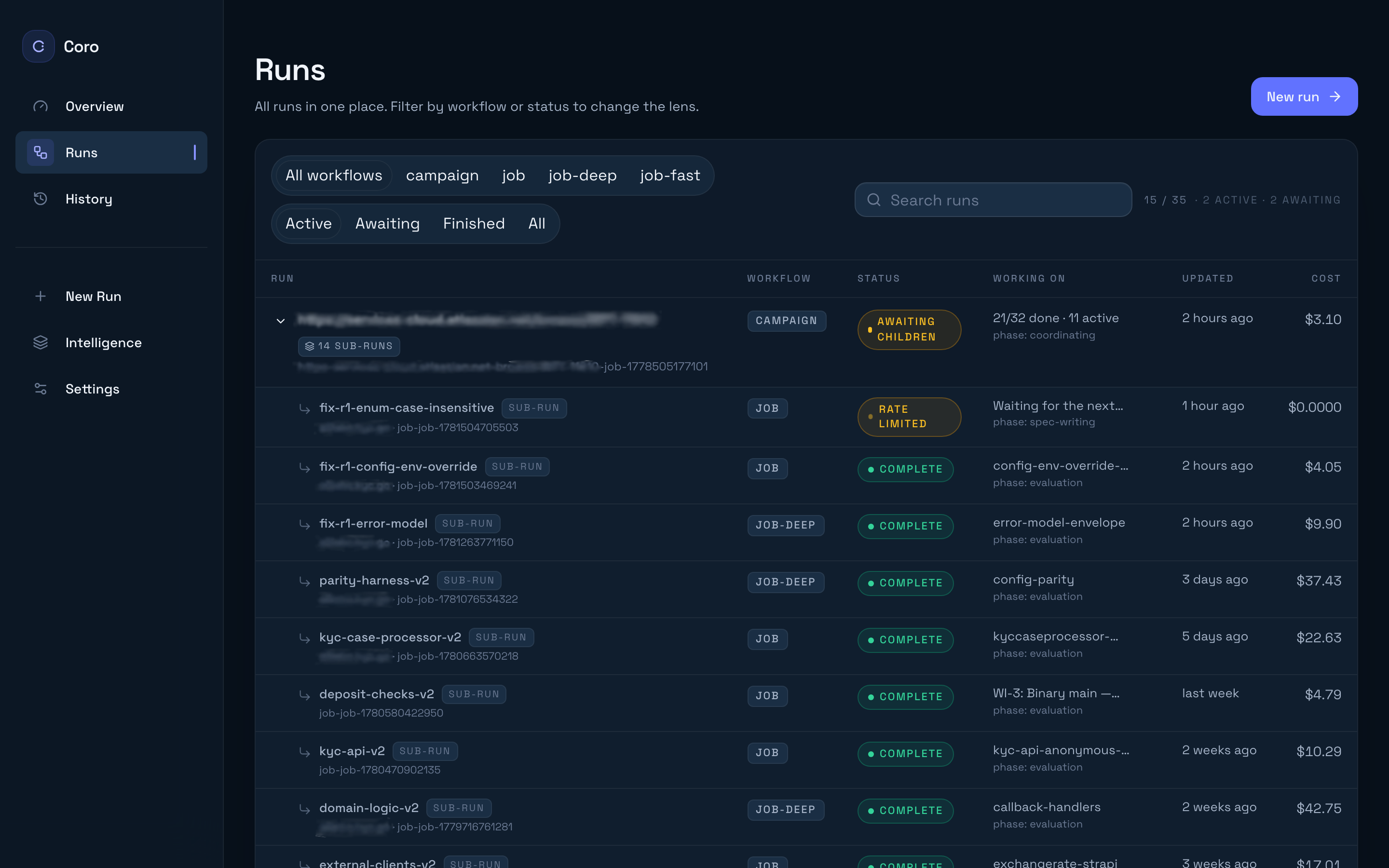
You’ll see timestamps, tool calls, and phase boundaries in the run detail UI—open any row on the Runs list to inspect phases, logs, artefacts, cost, and PR links.
Learn the dashboard
Once a run exists, inspect phases, logs, artifacts, cost, and PR links alongside any CLI output. Take the dashboard tour →
When you’re ready for deeper framing, continue with Concepts (intelligence layers, workflows, plugins) or jump to Next steps for curated links.